
Last updated: 16 October 2026. Checked against Salesforce Help articles 005321563, 005388907 and 005390721 on the same date.
Key takeaways
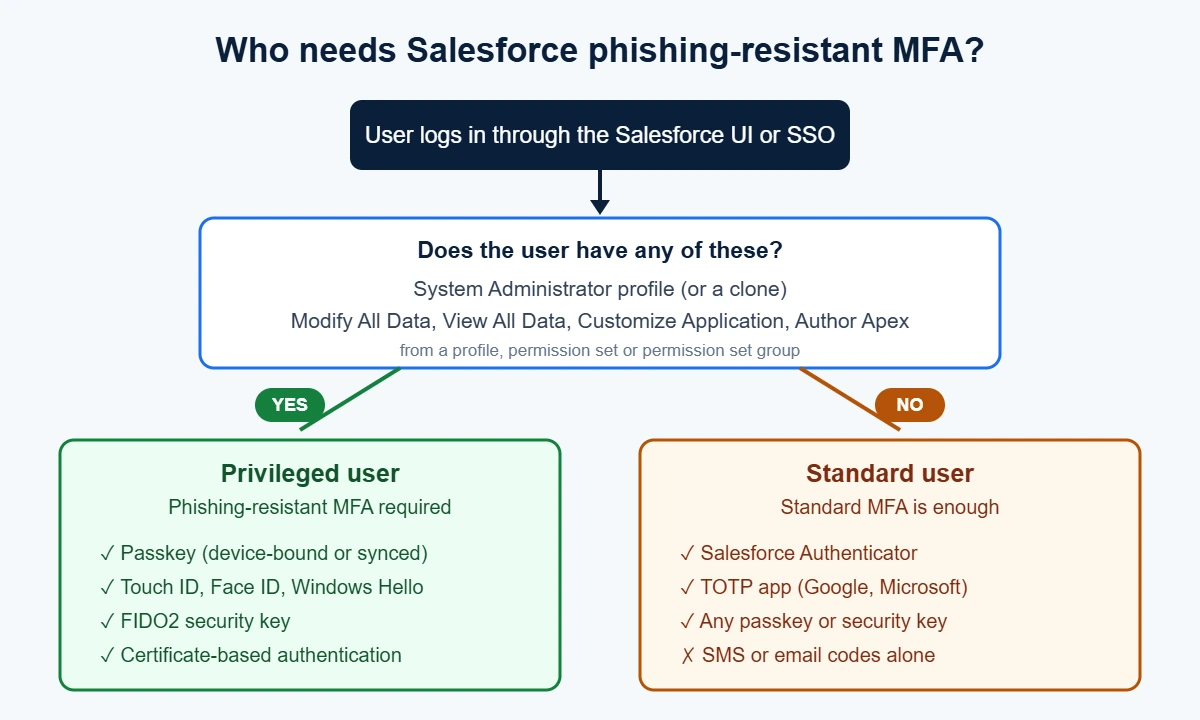
- Salesforce now requires phishing-resistant MFA for privileged users: anyone with the System Administrator profile, or the Modify All Data, View All Data, Customize Application or Author Apex permission.
- Only passkeys, built-in authenticators (Touch ID, Face ID, Windows Hello), FIDO2 security keys, certificate-based authentication and admin-generated temporary codes count. Salesforce Authenticator push, TOTP apps and SMS do not.
- Production enforcement rolled out by release group between 20 July and 3 September 2026. In October, Salesforce said there are “no indefinite delays” and is only working with a small group of customers on extensions.
- SSO users are covered only if the identity provider sends a phishing-resistant AMR or ACR value such as
fido2,hwkorphr.
Most Salesforce admins had MFA switched on years ago, so the 2026 change looked small on paper. It wasn’t. The new rule targets the people who can change everything in an org, and it throws out the methods most of them were using. An admin who approved a Salesforce Authenticator push every morning in spring now gets a “Create a Passkey” screen with no other option.
This guide explains the Salesforce phishing-resistant MFA requirement in full: who is in scope, the official dates, which methods pass, how SSO is judged, what breaks for integrations, sandboxes and mobile, and how to fix the login problems admins are reporting. Every rule below is taken from Salesforce’s own Help documentation, linked in the sources at the end.
What Salesforce phishing-resistant MFA means, in plain terms
Normal MFA asks for a second proof after your password, such as a six-digit code or a tap on your phone. The weakness is that a fake login page can sit between you and Salesforce. You type your password and code into the fake page, and the attacker replays them to the real site within seconds. Push approvals have the same problem, because people approve prompts they did not start.
Phishing-resistant methods are built on FIDO2 and WebAuthn. When you register a passkey or security key, it is tied to the real Salesforce domain. If a lookalike site asks for it, the browser simply won’t hand it over. There is nothing for the user to type, so there is nothing for an attacker to steal and replay.
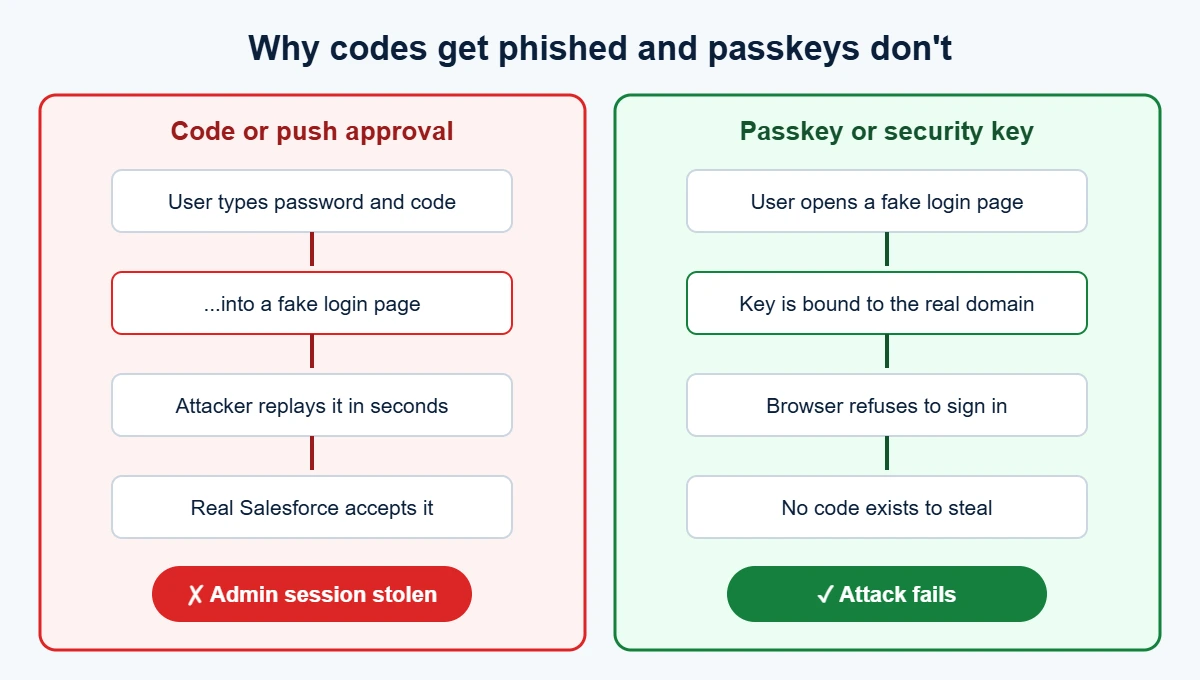
That is why Salesforce phishing-resistant MFA is aimed at privileged users first. One stolen admin session can export every record or change security settings for the whole org.
The Salesforce MFA requirement in 2026: two rules, not one
Salesforce enforces two separate controls, and they are easy to mix up.
| Rule | Who it covers | What satisfies it |
|---|---|---|
| MFA for all employee UI logins | Every internal user who logs in through the browser or mobile app | Any standard MFA method, such as Salesforce Authenticator, a TOTP app, a passkey or a security key |
| Phishing-resistant MFA for privileged users | Admins and users with any of the four high-risk permissions | Passkey, built-in authenticator, FIDO2 security key, certificate-based authentication or an admin-generated temporary code |
Once enforcement reaches your org, the setting “Require multi-factor authentication (MFA) for all direct UI logins to your Salesforce org” is switched on by Salesforce. Without an approved extension, admins can’t turn it off. It shows as greyed out or hidden.
Salesforce MFA enforcement dates
According to Salesforce Help article 005321563, Salesforce phishing-resistant MFA for privileged users rolled out in this order:
| Release group | Enforcement date |
|---|---|
| Preview sandboxes | 10 July 2026 |
| R0 | 20 July 2026 |
| R1 | 27 to 28 July 2026 |
| R2a | 29 to 30 July 2026 |
| R2b | 3 August 2026 |
| Japan and Korea | 1 September 2026 |
| All other orgs | 3 September 2026 |
Two details matter here. First, production was originally planned for 1 July and moved to 20 July after a bug that asked users with existing security keys to register new ones. Second, trial orgs converted to a paid subscription do not get the usual 30-day grace period. If you converted a trial recently, assume enforcement is already live.
Where things stand in October 2026
On 15 October, Salesforce Ben reported that some customers had received notices suggesting enforcement could slip further. Salesforce pushed back on that. A spokesperson said “there are no indefinite delays on anything” and that all controls will be implemented. Salesforce says it is working with a small number of customers who already had extensions over the next six to eight months, and that more than 90% of customers have adopted MFA.
The practical reading: if you have not received an extension from Salesforce in writing, treat the rule as active in your org today.
Who must use Salesforce phishing-resistant MFA
Scope follows permissions, not job titles. A finance analyst with View All Data is a privileged user in Salesforce’s eyes, even if nobody on your team calls them an admin.
| If the user has… | Requirement |
|---|---|
| System Administrator profile, or a clone of it | Phishing-resistant MFA |
| Modify All Data | Phishing-resistant MFA |
| View All Data | Phishing-resistant MFA |
| Customize Application | Phishing-resistant MFA |
| Author Apex | Phishing-resistant MFA |
| None of the above, logs in through the UI | Standard MFA |
The permission can come from a profile, a permission set or a permission set group. The rule covers direct UI logins and SSO logins, in production and in sandboxes. It also covers Chatter Plus users and internal users who reach an Employee Community or Experience Cloud site.
Not in scope:
- External users on Experience Cloud, Chatter External and Chatter Free licenses
- Developer Edition, trial, scratch and other non-paid orgs
- Pure API logins that never touch the login page (see the integrations section below)
How to find every privileged user in your org
Start with a list, not assumptions. This SOQL query returns every active user who falls under Salesforce phishing-resistant MFA because they hold one of the four permissions. Profiles are included too, because every profile has an underlying permission set that shows up in PermissionSetAssignment.
SELECT Id, Name, Username, Profile.Name
FROM User
WHERE IsActive = true
AND Id IN (
  SELECT AssigneeId
  FROM PermissionSetAssignment
  WHERE PermissionSet.PermissionsModifyAllData = true
  OR PermissionSet.PermissionsViewAllData = true
  OR PermissionSet.PermissionsCustomizeApplication = true
  OR PermissionSet.PermissionsAuthorApex = true
)
Run it in Developer Console or Workbench, then export the result. If you prefer clicks over code, the User Access and Permissions Assistant from AppExchange gives the same answer. Also pull a list of anyone holding “Waive Multi-Factor Authentication for Exempt Users”, because that permission no longer protects them.
Before you buy a single security key, look at the list and ask who really needs that access. Removing View All Data from five people who only needed it once is the cheapest compliance step you will take.
Which methods count as Salesforce phishing-resistant MFA
| Method | Standard users | Privileged users |
|---|---|---|
| Passkey, device-bound or synced through a FIDO2-compliant password manager | Yes | Yes |
| Built-in authenticator (Touch ID, Face ID, Windows Hello) | Yes | Yes |
| Security key (FIDO2 or WebAuthn, such as a YubiKey) | Yes | Yes |
| Certificate-based authentication (x.509) | Yes | Yes |
| Admin-generated temporary verification code | Yes | Yes, for short-term recovery |
| Salesforce Authenticator push | Yes | No |
| TOTP apps (Google Authenticator, Microsoft Authenticator, Authy) | Yes | No |
| SMS, email or phone codes | No (weak) | No |
Passkey, built-in authenticator or security key: which to choose
| Option | Works best for | Watch out for |
|---|---|---|
| Device-bound passkey or built-in authenticator | Admins who work from one laptop most of the time | It stays on that device. A new laptop means registering again. |
| Synced passkey in a password manager (Apple Passwords, Google Password Manager, 1Password, Bitwarden) | Admins who move between several machines | The password manager account itself now protects your Salesforce org, so lock it down too. |
| Hardware security key | Shared desks, locked-down machines, consultants working across many orgs | Keys get lost. Buy two per person and register both. |
Our general advice: give every privileged user two methods. A built-in authenticator for daily use plus a hardware key in a drawer covers almost every lockout story.
How to set up Salesforce phishing-resistant MFA
Step 1: Admin turns on the methods (one time)
- In Setup, type Identity Verification in Quick Find.
- Enable built-in authenticators and security keys. These settings apply to all users. You can’t limit them to admins.
- Optional but recommended: enable Allow passwordless login with passkeys. If you run Experience Cloud sites, read the external user note in the troubleshooting section first.
- Save.
Step 2: Each privileged user registers a method
- Open your personal Settings and go to Advanced User Details.
- For a passkey or built-in authenticator, find Built-in Authenticators, click Add, then Create Passkey. Confirm with your fingerprint, face or device PIN and give it a clear name, such as “Work MacBook”.
- For a hardware key, find Security Key (U2F or WebAuthn), click Register and tap the key.
- Repeat for a second method.
Users who already have an MFA method must verify with it before adding a new one. Users with nothing registered get a one-time code by SMS or email to get started.
Step 3: Test before you rely on it
Log out, log back in with the new method, and try it from a second browser. Do this in a sandbox first if your team has never used passkeys.
How SSO logins are judged: AMR and ACR values
SSO does not exempt anyone from Salesforce phishing-resistant MFA. When users sign in through Okta, Microsoft Entra ID, Ping or ADFS, Salesforce reads the authentication signals the identity provider sends in the SAML response or OIDC ID token. These are the AMR (Authentication Method Reference) and ACR (Authentication Context Class Reference) values.
| Signal level | Accepted AMR values |
|---|---|
| Phishing-resistant (needed for privileged users) | cert, face, fido, fido2, fpt, hwk, iris, passkey, phr, pki, pop, pwlesspasskey, retina, sc, smartcard, smartcardpki, softwarepki, swk, tlsclient, x509 |
| Standard (enough for other users) | mfa, mobiletwofactorcontract, okta_verify, pin, pgp, publickey, rsa, timesynctoken, user, vbm |
| Weak (not accepted) | pwd, sms, tel, email |
The accepted ACR list for phishing-resistant MFA is almost the same: fido, fido2, fpt, hwk, passkey, phr, pki, pwlesspasskey, retina, smartcard, smartcardpki, softwarepki, swk, tlsclient and x509.
Formatting rules that trip people up:
- SAML AMR: the attribute name must contain “amr” or “authnmethodsreferences”. Separate multiple values with semicolons. Comma-separated values are not parsed.
- OIDC AMR: send an array, for example
["hwk","mfa"]. Matching is exact. - ACR: matching is case-insensitive and uses a “contains” check, so a full URN that includes the value still works.
To check what your identity provider actually sends, open Login History and look at the AMR and ACR fields for a recent SSO login, or paste a response into the SAML Assertion Validator. If the right value isn’t there yet, you can turn on Use Salesforce MFA for this SSO Provider as a stopgap. Users then complete Salesforce MFA on top of the identity provider until the signal is fixed.
Extensions and the end of the Waive MFA permission
The “Waive Multi-Factor Authentication for Exempt Users” permission used to switch MFA off for specific accounts. It no longer does. Exceptions, such as automated UI testing tools, now need approval from Salesforce Support.
There is a developer side effect too. The API field PermissionsBypassMFAForUiLogins is removed unless your org has an extension, so Apex, metadata or scripts that reference it can fail to compile. Search your codebase and deployment packages for it.
Salesforce has granted two kinds of temporary extension:
- MFA For All Employees extension: covers non-privileged users only.
- Phishing-Resistant MFA (Passkeys) extension: temporarily lets privileged users use standard MFA instead.
Even with an extension, users may still see passkey prompts in some combinations of settings. Salesforce Help article 005388907 lists six scenarios and says this is expected behaviour, not a bug.
Integration users and API connections
Salesforce phishing-resistant MFA, like standard MFA, applies to UI logins. A connection that never shows a login page is not prompted. The catch is that some OAuth flows do involve an interactive login.
| Connection type | Affected by MFA? |
|---|---|
| OAuth JWT bearer flow | No |
| OAuth client credentials flow | No |
| OAuth web server and user-agent flows | Yes, they use a UI login |
Username-password flow and SOAP login() calls | Listed by Salesforce as affected in its troubleshooting article |
If an integration stopped working after enforcement, open Login History and check the Login Subtype and API Type fields for that user. The long-term fix is to move the integration to the JWT bearer or client credentials flow and keep the integration user API-only. This matters most for older middleware, ETL tools and custom scripts. If you are reviewing those connections anyway, our guide to Salesforce integration with other tools covers the main patterns.
Sandboxes and mobile: two places admins get surprised
Sandbox refreshes
Registered MFA methods do not copy into a refreshed sandbox. SAML SSO settings are partly copied but disabled, and the Recipient URL is updated. After every refresh, admins need to log in directly, register a passkey or key, then switch SSO back on. Since a late-July patch, a refreshed sandbox does inherit any extension your production org has, so you don’t need to request it twice.
Mobile apps and the Mobile SDK
Since July 2026, the mobile login shows the username first and then asks for a passkey or password. This change can break automated UI tests that script the old login screen. If you build on the Salesforce Mobile SDK, version 13.2.0 and earlier block admins in the default WebView unless advanced authentication is set up in My Domain. Version 13.2.1 adds a “Login for Admin” option.
Troubleshooting Salesforce passkey problems
| What the user sees | Likely cause | Fix |
|---|---|---|
| “Create a Passkey” with no option to choose another method | The user is privileged | Expected. Register a passkey or security key. |
| “Your account requires a passkey for enhanced security” after SSO | Identity provider did not send a phishing-resistant AMR or ACR value | Fix the identity provider signal, or use Salesforce MFA for that SSO provider for now |
| Passkey works on the laptop but not on a second device | Device-bound passkey, not synced | Use a synced passkey, a hardware key, or log in by scanning a QR code with your phone |
| Browser says “This device cannot be used”, or nothing happens after Create Passkey | Unsupported browser, no screen lock or PIN on the device, or passkeys disabled in the OS | Use current Chrome, Edge, Firefox or Safari, set a device PIN, or register from a second device via QR code |
| Passkey prompt after a sandbox refresh | Verifiers don’t carry over | Register again and re-enable SSO |
| External community users see a passkey prompt | Passwordless login with passkeys is on | Turn off “Allow passwordless login with passkeys” or confirm the user’s license type |
| User with the Waive MFA permission is asked for a passkey | That permission no longer exempts anyone | Register a method, or request an exception from Salesforce Support |
| Admin is locked out | Lost device or key | Another admin issues a temporary verification code. If you are the only admin, contact Salesforce Support with your org ID and username. |
To replace a broken passkey, log in with another method, open your personal settings, delete the old passkey under Built-in Authenticators (or on the Passkeys page), then add a new one.
A 30-day Salesforce phishing-resistant MFA rollout plan
If your org is still catching up, this four-week plan gets every privileged user compliant without surprise lockouts.
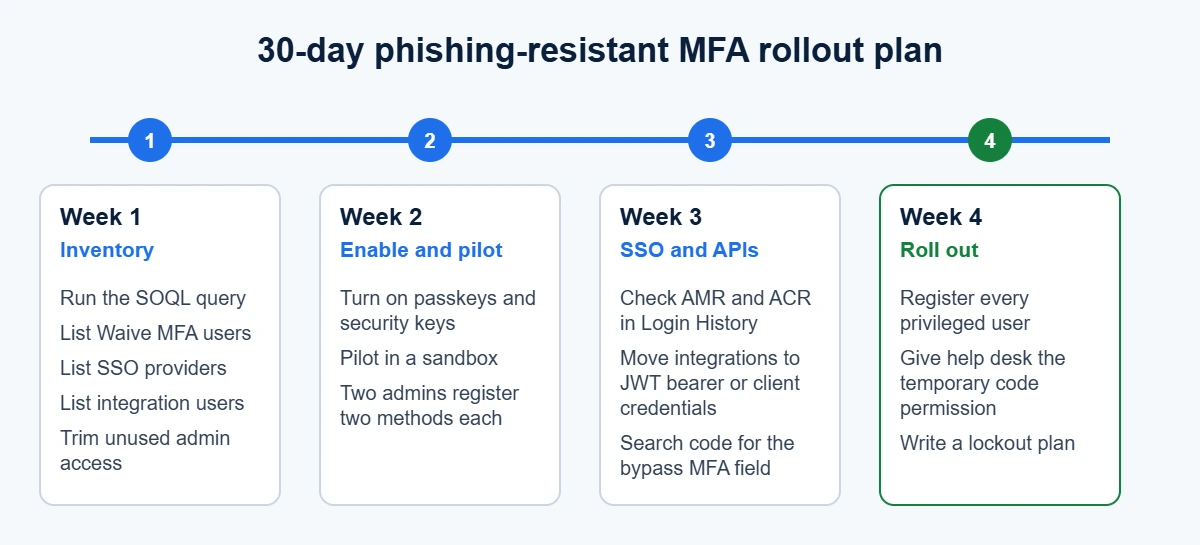
- Week 1, inventory: run the SOQL query, list users with the Waive permission, list SSO providers and integration users. Remove access that nobody needs.
- Week 2, enable and pilot: turn on built-in authenticators and security keys in a sandbox. Have two admins register two methods each and run their normal work for a few days.
- Week 3, fix SSO and integrations: confirm your identity provider sends a phishing-resistant value for admins. Move any integration on a UI-based OAuth flow to JWT bearer or client credentials. Search code for
PermissionsBypassMFAForUiLogins. - Week 4, roll out and document: register every privileged user in production, give your help desk the “Manage Multi-Factor Authentication in User Interface” permission so they can issue temporary codes, and write down who to call if the last admin gets locked out.
If MFA is one of many admin and security jobs piling up, our Salesforce managed services team can run the privileged access review and rollout with you. Teams planning a new org can build these controls in from day one using our Salesforce implementation checklist.
Salesforce phishing-resistant MFA FAQs
Does Salesforce Authenticator count as phishing-resistant MFA?
No. Salesforce Authenticator push approvals and codes still count as standard MFA for regular users. Privileged users need a passkey, built-in authenticator, security key or certificate-based authentication.
Who counts as a privileged user in Salesforce?
Anyone with the System Administrator profile or a clone of it, or the Modify All Data, View All Data, Customize Application or Author Apex permission, whether it comes from a profile, a permission set or a permission set group.
When was Salesforce phishing-resistant MFA enforced?
Preview sandboxes on 10 July 2026, then production by release group from 20 July to 3 September 2026. Japan and Korea followed on 1 September. Salesforce says it is working with a small number of customers on extensions over the six to eight months following October 2026.
Can we still exempt users from MFA?
The Waive Multi-Factor Authentication for Exempt Users permission no longer works as an exemption. Exceptions, such as for automated testing tools, must be approved by Salesforce Support.
Does SSO satisfy the requirement?
Only if your identity provider sends an accepted AMR or ACR value. For privileged users, that value must be phishing-resistant, such as fido2, hwk, passkey or phr. A generic “mfa” value only covers standard users.
Do integration users need phishing-resistant MFA?
API logins are not prompted. Integrations using the JWT bearer or client credentials flow are unaffected. Integrations using OAuth web server or user-agent flows go through a UI login and can be blocked, so move them to an API-only flow.
Why does Salesforce keep asking me to create a passkey?
Either you are a privileged user, your SSO login did not send a phishing-resistant signal, or you are in a refreshed sandbox where your methods did not carry over. The troubleshooting table above maps each message to a fix.
What happens if a privileged user loses their only passkey?
Another admin can generate a temporary verification code so they can log in and register a new method. If there is no other admin, contact Salesforce Support with your org ID and admin username.
Sources
- Salesforce Help 005321563: Prepare for Phishing-Resistant MFA Enforcement for Privileged Users including Admins
- Salesforce Help 005388907: Post-Enforcement Passkey Prompts and Extension Behavior
- Salesforce Help 005390721: Resolve Passkey Login Issues in Salesforce
- Salesforce Help 005321561: Prepare for MFA Enforcement for All Employee Users
- Salesforce Admins Blog: Prepare Your Org for Salesforce MFA Enforcement
- Salesforce Ben: Salesforce Confirms New MFA Updates (15 October 2026)