

Last updated: 8 October 2026
Quick answer
Zoho CRM gives every org a daily budget of API credits on a rolling 24-hour window. Regular record imports cost 1 credit per 10 records (up to 100 per call), while a Bulk Write job costs a flat 500 credits for up to 25,000 records, so Bulk Write is cheaper only above 5,000 records per job. On a 460,000-record Salesforce migration that is the difference between about 46,000 credits and 9,500. Plan the load in three stages (structure, then users, then data), load parent records first, and stop each run before the daily budget is spent.
Most Salesforce to Zoho CRM migration plans talk about field mapping and data cleanup. Far fewer talk about the constraint that actually decides how many days the data load takes: Zoho’s daily API credit budget. Run out halfway through and the import stops, integrations on the same org start failing, and nobody can say how much is left.
This guide explains how Zoho counts API credits, when Bulk Write is worth it, what the schema itself costs, and the load order that keeps lookups and record owners intact. It is written for CRM admins, project leads and IT managers planning a move from Salesforce to Zoho CRM. It reflects how our team runs these migrations on CRM Migrate, the migration platform our engineers built for Salesforce to Zoho projects, and every Zoho and Salesforce limit quoted below links to the vendor’s own documentation.
If you are earlier in the decision and want the overall process, object mapping and risks, start with our Salesforce to Zoho CRM migration guide. This article goes one level deeper into the load itself.
How Zoho CRM API credits work
Every Zoho CRM org has a pool of API credits that refills on a rolling 24-hour window, counted from the time of each call. Each API operation spends a set number of credits. The pool is shared by everything that calls the API on that org, which means a migration competes with any live integration, website form or sync tool already connected.
The size of the pool depends on your edition and the number of user licences. These are Zoho’s published formulas (Zoho CRM API limits):
| Edition | Daily credits | Maximum |
|---|---|---|
| Free | 5,000 | 5,000 |
| Standard / Starter | 50,000 + (user licences x 250) + add-ons | 100,000 |
| Professional | 50,000 + (user licences x 500) + add-ons | 3,000,000 |
| Enterprise / Zoho One | 50,000 + (user licences x 1,000) + add-ons | 5,000,000 |
| Ultimate / CRM Plus | 50,000 + (user licences x 2,000) + add-ons | No cap |
A 25-user Professional org therefore gets 50,000 + (25 x 500) = 62,500 credits a day. A 25-user Enterprise org gets 75,000. These numbers matter more than any field map, because they set how many records you can move per day without buying add-on credits.
Salesforce has its own ceiling on the extract side. Enterprise and Unlimited editions get 100,000 API calls per 24 hours plus an allowance per licence and any purchased add-ons (Salesforce API request limits), and a REST query returns at most 2,000 records per response (Salesforce REST query). Extracting 460,000 records page by page is roughly 230 calls, which is rarely the bottleneck. Zoho’s side usually is.
What each migration operation costs in Zoho
A migration spends credits in three places: building the schema, loading records and reading settings along the way. Zoho’s current rates for the operations a migration uses:
| Zoho operation | Credits |
|---|---|
| Insert, update or upsert records | 1 per 10 records, up to 100 records per call |
| Create a custom field | 10 per field |
| Create a custom module | 500 |
| Start a Bulk Write job | 500 per job, up to 25,000 records |
| Update, delete or replace a global picklist | 50 |
In CRM Migrate, every call to Salesforce and Zoho is logged with its stage, operation and credit cost. That log is what makes it possible to forecast the remaining work and, after the migration, to compare the forecast with what was actually spent.
Batch API vs Bulk Write: the 5,000-record break-even
For n new records, the two load methods cost:
- Batch API: n divided by 10, rounded up, in calls of up to 100 records.
- Bulk Write: 500 credits per job, with up to 25,000 records per job, so 500 x (n divided by 25,000, rounded up).
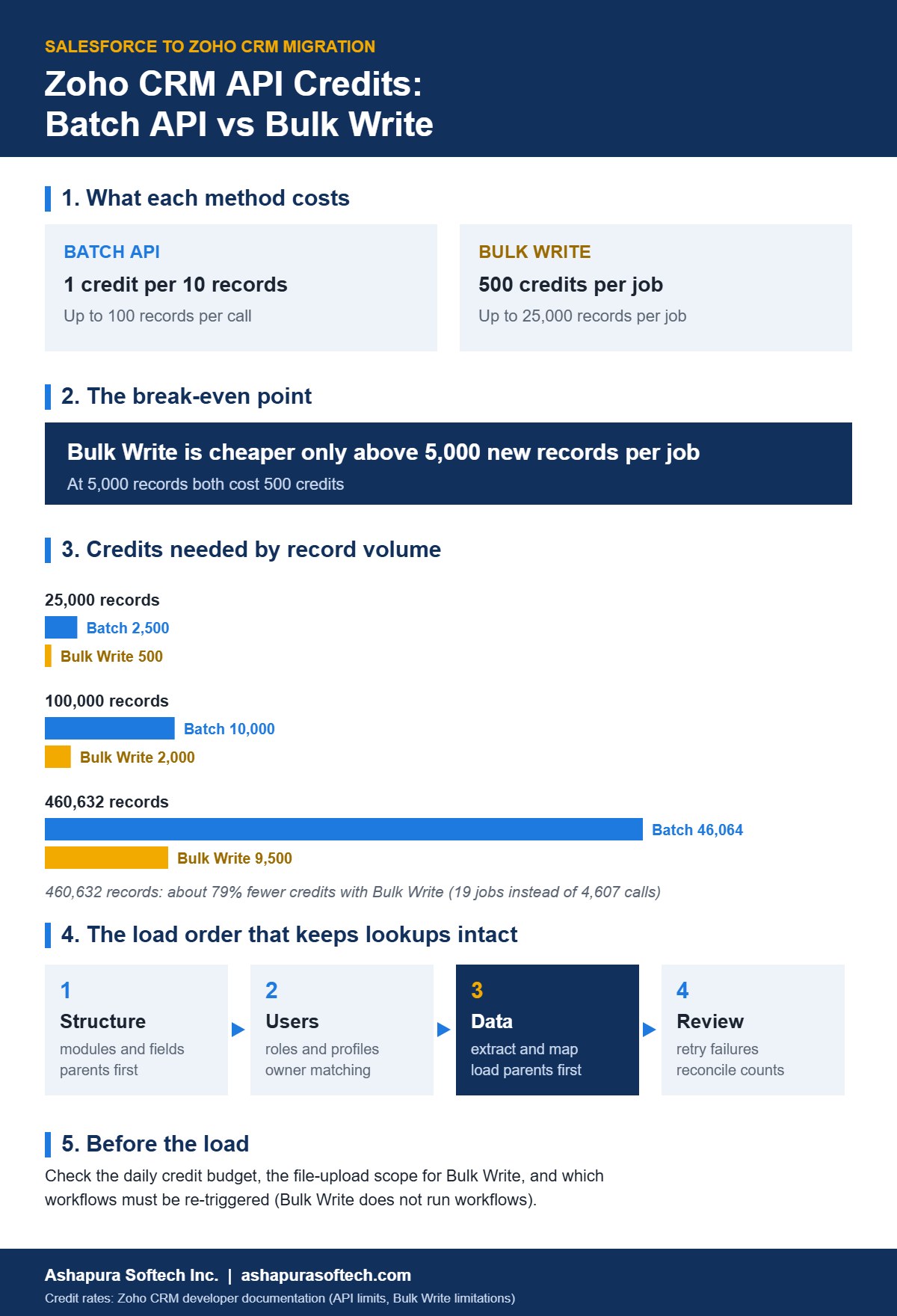
The two lines cross at 5,000 records. Below that, batches are cheaper. Above it, Bulk Write is cheaper, and the gap widens fast:
| New records | Batch API credits | Bulk Write credits | Cheaper method |
|---|---|---|---|
| 1,000 | 100 | 500 | Batch |
| 5,000 | 500 | 500 | Equal |
| 25,000 | 2,500 | 500 | Bulk Write |
| 100,000 | 10,000 | 2,000 (4 jobs) | Bulk Write |
| 460,632 | 46,064 (4,607 calls) | 9,500 (19 jobs) | Bulk Write |
The last row is the worked example from our platform’s design documentation: 460,632 records would have consumed 46,064 credits through batches, against 9,500 through Bulk Write, about 79 percent less. On the 25-user Professional org above, the batch route would use three quarters of a day’s budget on records alone. The bulk route uses about 15 percent.
That is why our loader works through each object in chunks of 25,000 new records. A chunk of more than 5,000 goes through Bulk Write; anything smaller, and every update to an existing record, goes through regular batches.
Four Bulk Write limits to plan around
- Workflows do not run. Zoho states that the Bulk Write API does not support workflows (Bulk Write limitations). If a workflow should fire on new Deals or Contacts, re-trigger it after the load or replace it with a one-off update.
- A failed job still costs 500 credits. The charge applies irrespective of the job’s state, so validate the file before you submit it.
- 25,000 records and 25 MB per file. One CSV of up to 25,000 records and up to 200 columns, zipped. Larger objects need several jobs.
- The connection needs file-upload permission. Bulk Write uploads a file first. If the Zoho OAuth connection was granted without that scope, the load has to fall back to batches. CRM Migrate checks this before spending any credits and switches automatically.
Planning a Salesforce to Zoho CRM move and want a credit forecast for your actual record counts? Talk to our migration team and we will scope it with you.
Do not forget what the schema costs
Before a single record moves, the target structure has to exist in Zoho. Custom modules cost 500 credits each and custom fields 10 each, which adds up on a heavily customised Salesforce org.
Take an org with 8 custom objects and 320 custom fields across standard and custom objects: 8 x 500 + 320 x 10 = 7,200 credits before any data loads. Global picklist changes add 50 each. Two habits keep this number down:
- Carry over only the layouts you use. Fields that appear on no page layout anyone relies on can usually stay behind, which keeps Zoho lean and saves 10 credits per field.
- Check what already exists. Before creating a field, read the Zoho module and skip anything already there. Creating a field twice wastes credits and leaves a duplicate to clean up.
One more Zoho limit catches teams out at this stage: the field API cannot mark a field as mandatory or give it a default value. Those settings have to be applied in Zoho Setup by hand, so keep a list of the fields that need them rather than letting the step fail.
The load order that keeps lookups and owners intact
Credits decide how fast you can move. Order decides whether what arrives is usable. We run every migration in three stages, and each depends on the one before it.
Stage 1: structure
Scan the Salesforce metadata (objects, fields, picklists, page layouts, validation rules, Apex and triggers) and save it as a fixed snapshot so later steps work from the same picture. Pair each object with a Zoho module: Account to Accounts, Contact to Contacts, Opportunity to Deals, Lead to Leads, Case to Cases, and custom objects to new custom modules. Give every field a Zoho type, for example Salesforce currency to Zoho currency and multi-select picklist to Zoho multi-select.
Then create modules in dependency order. Any object that looks up to another must be created after it, so build a graph of the lookup relationships and sort it so parents always come first. Our platform does this with a topological sort (Kahn’s algorithm), so the creation order is computed from the relationships rather than worked out by hand.
Stage 2: users and access
Recreate roles with their reporting hierarchy, parents before children, and turn Salesforce profiles into Zoho profiles after previewing the permissions each will get. Then match every Salesforce user to a Zoho user: by exact email first, then username, then full name. Users with no match can be created in Zoho or mapped by hand.
This stage exists for the data that follows. Each record’s owner is set from these pairings. If an owner has no mapping, the record falls to the connected Zoho user, so leaving users unmatched quietly hands hundreds of records to one admin. Count those cases before the load, not after.
Stage 3: data
- Extract to staging. Copy records out of Salesforce in pages and keep them in a staging area, so a stopped extraction resumes where it stopped and nothing is pulled twice.
- Map one column to one field. Each Salesforce column maps to at most one Zoho field, and each Zoho field takes at most one column. Two columns writing to the same field overwrite each other silently.
- Transform consistently. Dates to YYYY-MM-DD, date-times to ISO 8601, checkboxes to true or false, multi-select values (A;B;C) to lists, and addresses into Zoho’s separate street, city, state, code and country fields.
- Load parents first. Load Accounts before Contacts and Deals, keep a map from each Salesforce id to its new Zoho id, and resolve every child’s lookups from that map. An unresolved lookup should be left empty, not guessed.
- Keep the Salesforce id on every record. Store it in a dedicated field in Zoho. Re-running the import then matches and updates instead of creating duplicates.
The data cleanup that should happen before any of this, deduplication, picklist clean-up and deciding how much history to bring, is covered in how to prepare Salesforce data for a Zoho CRM migration.
Plan the load in daily windows
Put the numbers together for the 25-user Professional org with 62,500 credits a day, 8 custom objects, 320 custom fields and 460,632 records:
| Work | Credits |
|---|---|
| Schema: 8 custom modules and 320 custom fields | 7,200 |
| Records through Bulk Write (19 jobs) | 9,500 |
| Updates, retries and settings reads (allowance) | A few thousand, counted as they happen |
| Total against a 62,500 daily budget | Fits inside one window with room for live integrations |
The same migration through batches alone would need about 53,000 credits for schema and records, leaving almost nothing for the integrations that also use the org. That is the scenario where a migration and a live web form start failing on the same afternoon.
Two rules make the plan safe in practice:
- Forecast only the remaining work. Subtract modules, fields and records already created, use real Salesforce record counts rather than estimates, and label any object without a count as missing data instead of guessing.
- Guard the budget during the run. Before each page of records, check the connection’s remaining credits and stop cleanly when the budget is nearly spent. The next run picks up from the first record not yet loaded.
Errors, retries and reconciliation
Every record should end in one of three states, created, updated or failed, with Zoho’s reason stored for each failure. Group failures by cause, because a single bad picklist value or missing mandatory field usually explains hundreds of rows. Fix the cause, then retry only the failed records. Re-sending everything wastes credits and risks overwriting records that loaded correctly.
Finish with reconciliation, object by object: records in Salesforce, records in staging, and records created or updated in Zoho. The three numbers should agree, and any gap should be explained before users are told to switch over.
When Zoho’s built-in migration tool is enough
Not every move needs an API-based migration. Zoho CRM’s own data migration feature accepts a zip of Salesforce CSV exports with an Attachments folder and supports Users, Leads, Accounts, Contacts, Deals, Campaigns, Notes, Activities, Cases, Products, Quotes, Sales Orders, Invoices, Price Books and custom modules (Zoho: migrating from Salesforce). It pauses if more than 5,000 records in a module are skipped, so you can decide whether to continue.
That route suits small orgs with standard objects and clean data. A staged, API-based migration earns its cost when you have heavy customisation, hundreds of thousands of records, a role hierarchy to rebuild, live integrations sharing the credit budget, or a need to prove counts to an auditor. If you are weighing outside help, our guide on choosing a Zoho migration partner lists the questions to ask, and our Zoho CRM implementation cost guide covers budgets.
Pre-load checklist
- Confirm your Zoho edition, user licences and resulting daily credit budget, and check which integrations already spend credits on the org.
- Count records per Salesforce object and decide, per object, whether it goes through Bulk Write or batches.
- Make sure the Zoho OAuth connection includes the file-upload scope Bulk Write needs.
- List workflows that must fire on new records and plan how to re-trigger them after bulk loads.
- Create modules and fields in dependency order, and note the fields that need mandatory flags or defaults set by hand.
- Match every Salesforce record owner to a Zoho user and count the unmatched ones.
- Add a Salesforce id field to every Zoho module you load, so re-runs update instead of duplicating.
- Agree the reconciliation counts that will sign off each object.
Want this checklist applied to your org, with a credit forecast per object? Book a free 30-minute migration review with our team.
Frequently asked questions
How many API credits does Zoho CRM give per day?
It depends on edition and user licences. Zoho’s formula is 50,000 credits plus a per-licence amount: 250 per user on Standard (capped at 100,000), 500 on Professional (capped at 3,000,000), 1,000 on Enterprise and Zoho One (capped at 5,000,000) and 2,000 on Ultimate (no cap). The Free edition gets 5,000. Add-on credits can be bought on top, and the limit runs on a rolling 24-hour window.
How many credits does it cost to import records into Zoho CRM?
Insert, update and upsert calls cost 1 credit per 10 records, with up to 100 records per call. A Bulk Write job costs a flat 500 credits whatever its outcome and can carry up to 25,000 records in one CSV file.
When is Zoho Bulk Write cheaper than the regular API?
Above 5,000 new records per job. At 5,000 records both cost 500 credits. Below that, regular batch calls are cheaper; above it, Bulk Write wins, and at 25,000 records it costs 500 credits instead of 2,500.
Do Zoho workflows run on records loaded with Bulk Write?
No. Zoho’s documentation states that the Bulk Write API does not support workflows, so any workflow rule that should fire on new records has to be re-triggered or replaced after a bulk load.
What happens if a migration runs out of Zoho API credits?
Further API calls fail until the rolling 24-hour window frees up credits. A well-run migration checks the remaining budget before each page of records, stops cleanly before the limit and resumes from the first record that was not loaded.
Can I use Zoho’s built-in tool to migrate from Salesforce instead?
Yes, for many standard migrations. Zoho CRM’s data migration feature accepts a zip of Salesforce CSV exports with attachments and supports standard modules and custom modules. It is file based, so it does not handle roles, permissions or API-level reconciliation, and it pauses if more than 5,000 records in a module are skipped.
Sources
- Zoho CRM API limits and credit costs
- Zoho CRM Bulk Write limitations
- Zoho CRM help: migrating from Salesforce
- Salesforce API request limits and allocations
- Salesforce REST API query resource
About the author
Ankur Pandey is Marketing Manager at Ashapura Softech Inc., where he works with the Zoho and Salesforce delivery teams on implementation and migration guides for US businesses. This article is based on the design documentation of CRM Migrate, the Salesforce to Zoho migration platform built by Ashapura’s engineering team, and was checked against Zoho’s and Salesforce’s published API documentation.